> For the complete documentation index, see [llms.txt](https://docs.razedmods.com/llms.txt). Markdown versions of documentation pages are available by appending `.md` to page URLs; this page is available as [Markdown](https://docs.razedmods.com/razed-mods-cfx-marketplace/naturalvision-evolved-single-player/install-guide.md).
# Install Guide
## Requirements and General Information
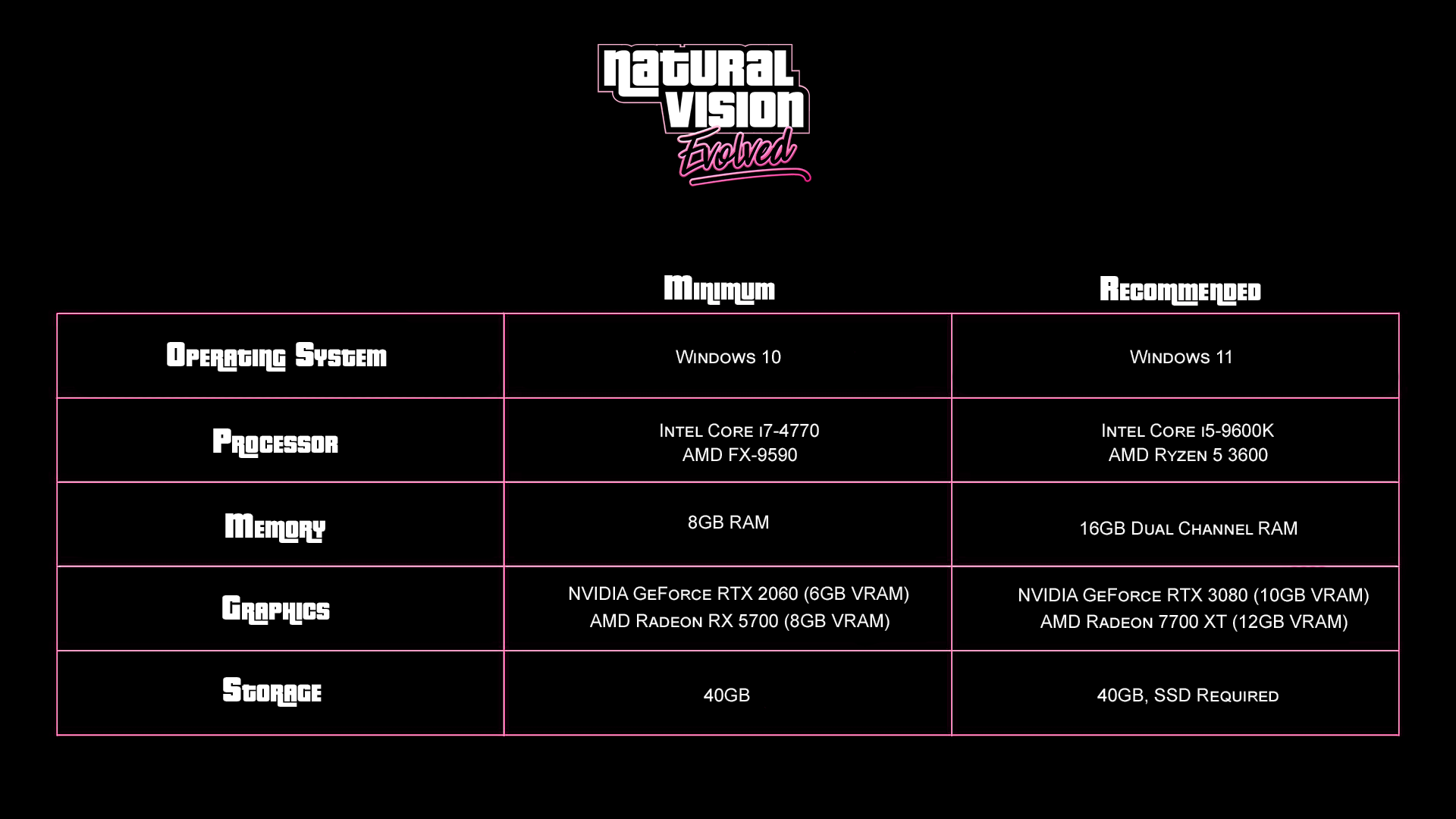
#### Recommended Specs
{% hint style="info" %}
With NaturalVision Evolved, in-game performance will be about the same as vanilla in most places. Weathers with volumetric clouds will cause some FPS loss.
{% endhint %}
## Getting Ready
{% hint style="danger" %}
Before we begin, make sure **make sure you have both *****OpenIV***** and *****ScripthookV*** installed before you continue!
[OpenIV is used to open .oiv files and easily install GTAV mods ](https://mega.nz/file/YwRHURaS#QlaKpPkY5XfLVyjJDj_Pvjnb8s4aQCBUI8BPZuWgoOo)\
[ScripthookV is used to run script mods in the form of .ASI files](http://www.dev-c.com/gtav/scripthookv)
{% endhint %}
{% hint style="info" %}
Make sure your game folder is clean.\
If you are using a previous version of NaturalVision then uninstall it.
***To remove an older graphics mod, please refer to the "NaturalVision Uninstaller.oiv" add-on within the "Optional Add-Ons" folder.***
{% endhint %}
## Install Instructions
{% stepper %}
{% step %}
#### Main Package — copy mods & plugins
Extract the "NaturalVision Evolved - Single Player Package" archive to your desktop. Don't touch anything yet, we'll come back to this later.
{% endstep %}
{% step %}
#### Open IV Asi
Run OpenIV.exe \
Click "Tools > ASI Manager" and then install the ASI Loader Plugin \
Next install the OpenIV.asi Plugin \
OpenIV will ask if you want to make a 'mods' folder - Click YES \
Exit OpenIV
{% endstep %}
{% step %}
#### Installing NVE
Go back to the "NaturalVision Evolved - Single Player Package" folder.\
\
Run "1. NaturalVision Installer - PART ONE.oiv" by using OpenIV and install it to the mods folder.
Now, do the same for "2. NaturalVision Installer - PART TWO.oiv" and "3. NaturalVision Installer - PART THREE.oiv".
{% endstep %}
{% step %}
#### ReShade Shaders
Click on the folder labeled "ReShade Shaders" and open it.
Copy the ReShade files into your GTAV installation folder depending on your launcher:
* Steam Version: C:\Program Files (x86)\Steam\SteamApps\common\Grand Theft Auto V
* Social Club Version: C:\Program Files\Rockstar Games\Grand Theft Auto V
* Epic Games Version: C:\Program Files (x86)\Epic Games\GTAV
(Ensure ReShade files are placed into the main GTA V folder where GTA5.exe resides.)
{% endstep %}
{% step %}
### Disabling BattlEye
You will need to disable BattlEye Anti-Cheat in order to use mods in GTAV. See below for instructions on disabling it.
\
**Disabling BattlEye on Steam:**
* Go to your Steam library
* Right-click 'Grand Theft Auto V'
* Go to the 'Properties' tab
* Under 'Selected Launch Option' type -nobattleye in the box
\
**Disabling BattlEye on the Rockstar Games Launcher:**
* Go to the Rockstar Games Launcher and select 'Grand Theft Auto V'. Do not click play.
* Click on 'Settings' within the Grand Theft Auto V launcher tab. It should be a button in the corner.
* Uncheck 'BattlEye' to disable it
\
**Disabling BattlEye on the Epic Games Launcher:**
* Go to your Epic Games library
* Right-click 'Grand Theft Auto V'
* Go to the 'Manage' tab
* Enable 'Launch Options' and type -nobattleye in the box
{% endstep %}
{% endstepper %}
## Post-install
We're done installing NaturalVision Evolved! Before starting your game, read the sections below for additional information.
## Settings Tips
* Disable in-game MSAA to view volumetric clouds properly.
* Set GTAV PostFX and Particles Quality to "Very High" or "Ultra" for shaders and effects to work properly.

* Set GTAV Shader Quality to "Very High".

* Set DirectX to "DirectX 11" under Graphics settings.
## ReShade Tips
* Open the ReShade menu with the INSERT key and go to the "NVE" tab.

* Enable "Enable shader modifications" under the Shader game menu to begin tweaking effects. All modifications are automatically saved.
* Under the "Vehicle" tab, you can adjust emissive intensity of vehicle lights and sirens, and vehicle headlight intensity.
* Use the "Preset" dropdown to create and save a new preset.

## Display Brightness Tips
{% hint style="info" %}
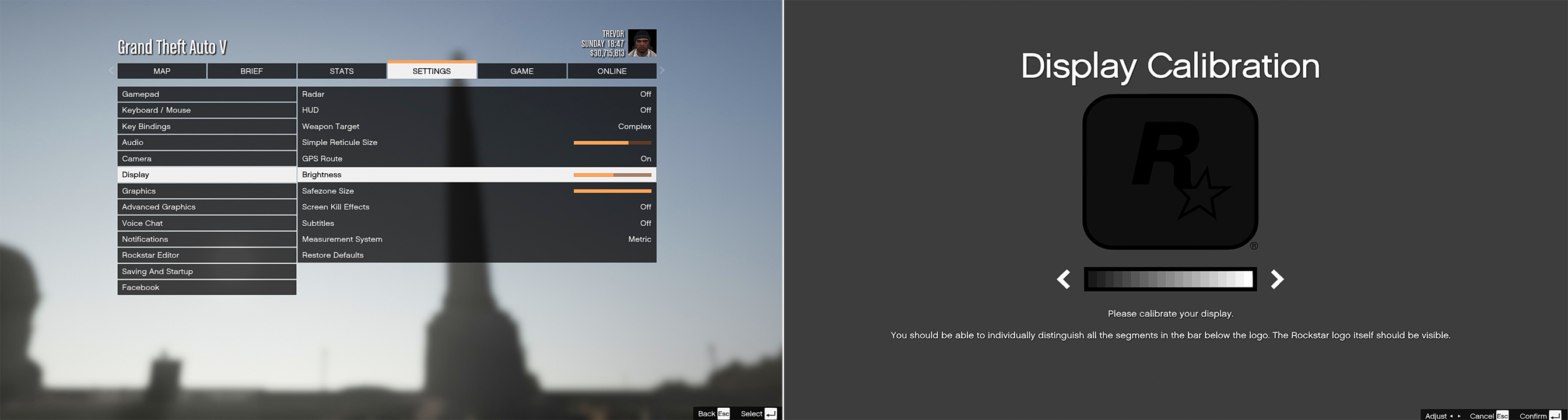
It is very important for you to set the correct brightness level. Otherwise you won't see certain details properly.
Try to keep your GTAV display brightness at 50% for the best possible experience.
You can copy my settings below. Keep in mind they're based on my own monitor's brightness settings.
To get the best possible results, I suggest reading [this guide](https://geforce.com/whats-new/guides/how-to-calibrate-your-monitor) and calibrating your monitor's display settings.
Alternatively, you can take all the tests on the top of [this page](http://www.lagom.nl/lcd-test/contrast.php) and calibrate your monitor as you go along.
{% endhint %}
The Rockstar logo MUST be visible.
{% hint style="info" %}
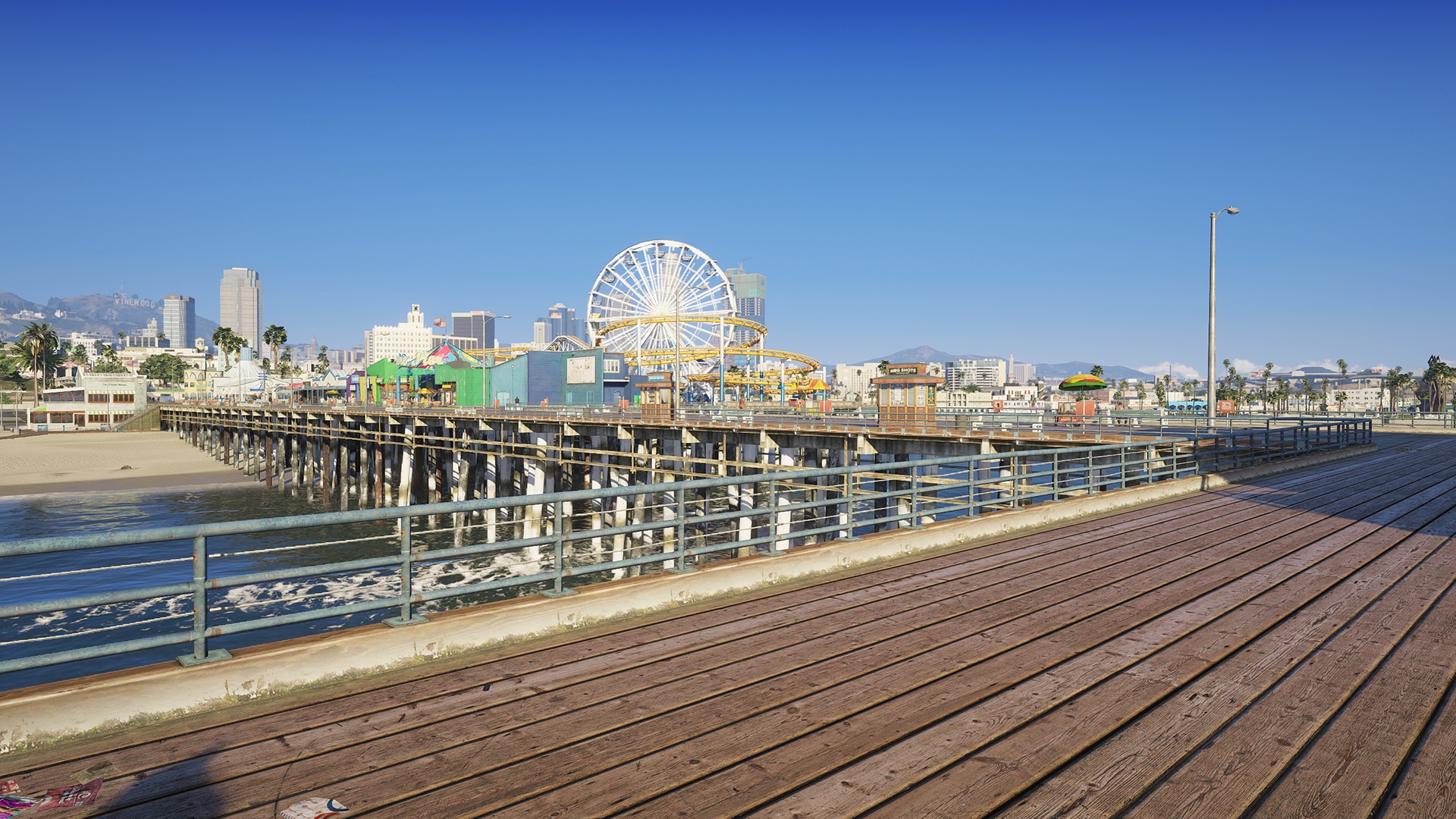
Try to match colors, contrast and gamma with the picture below. \
\
**Weather:** ExtraSunny\
**Time:** 18:00\
**Location:** Del Perro Pier
{% endhint %}
If colors, contrast and gamma do not match, adjust your display settings.
## RAGEPluginHook Tips
***
{% hint style="info" %}
If you want to use NVE with ReShade + RAGEPluginHook then you must install the optional add-on called 'LSPDFR Compatibility Patch'.
After that you must go to your GTAV folder and run the file called 'GTAV - RPH Launcher.bat'. This script will automatically start everything for you.
{% endhint %}
**If this does not work then you can follow the steps below to manually run it.**
* First, launch GTAV normally through Steam, Social Club or the Epic Launcher.
* Once your game is at the menu screen that says "Quit", "Settings", "Online", "Story Mode" etc, Run RAGEPluginHook.exe from your GTAV folder.
* Wait for RAGEPluginHook to load everything.
* Once it's fully loaded, you can then click "Story Mode" and load into single player.
* Now you will be able to use LSPDFR with NVE + ReShade together. Enjoy playing!
{% hint style="warning" %}
You may need to disable the GeForce Experience overlay in order to launch your game with RAGEPluginHook and ReShade
{% endhint %}
{% hint style="warning" %}
RAGEPluginHook may not launch properly if you wake your computer from sleep mode. If you run into this issue then restart your computer and try again.
{% endhint %}
## Trainer Tips
***
* ScriptHookV is required for trainers.
* [Recommended trainer: Simple Trainer](https://gta5-mods.com/scripts/simple-trainer-for-gtav)
* Do not use other trainers to change weathers with this mod, forceful cloud changes can break cloud formation and cause visual bugs.
* Use "real-time duration" in Simple Trainer to preserve sunrise/sunset timing.
## Enabling Volumetric Street Lights
***
{% hint style="danger" %}
T*his effect will cause a slight performance drop!*
{% endhint %}
To enable volumetric street lamps:
1. Open Documents\Rockstar Games\GTA V\settings.xml
2. Find the line: Lighting\_FogVolumes value="false" />
3. Change "false" to "true" and save.
Next time you start GTA V, volumetric lighting effect for street lamps will be enabled.
## Volumetric Headlights Controls (Add-On)
***
* Toggle menu: Left CTRL + H (or Numpad 0).
* Numpad navigation:
* 5 select
* 7 / 9 switch categories
* 8 / 2 navigate up/down or change vertical light position
* 4 / 6 decrease/increase values or change horizontal position
* 1 / 3 move light forward/back
* Changes auto-save to Grand Theft Auto V\nve\_car\_volumetrics\vehicles\config.ini
Note: Teleporting or teleport-based trainers may disable volumetric headlights until you re-enter the vehicle.